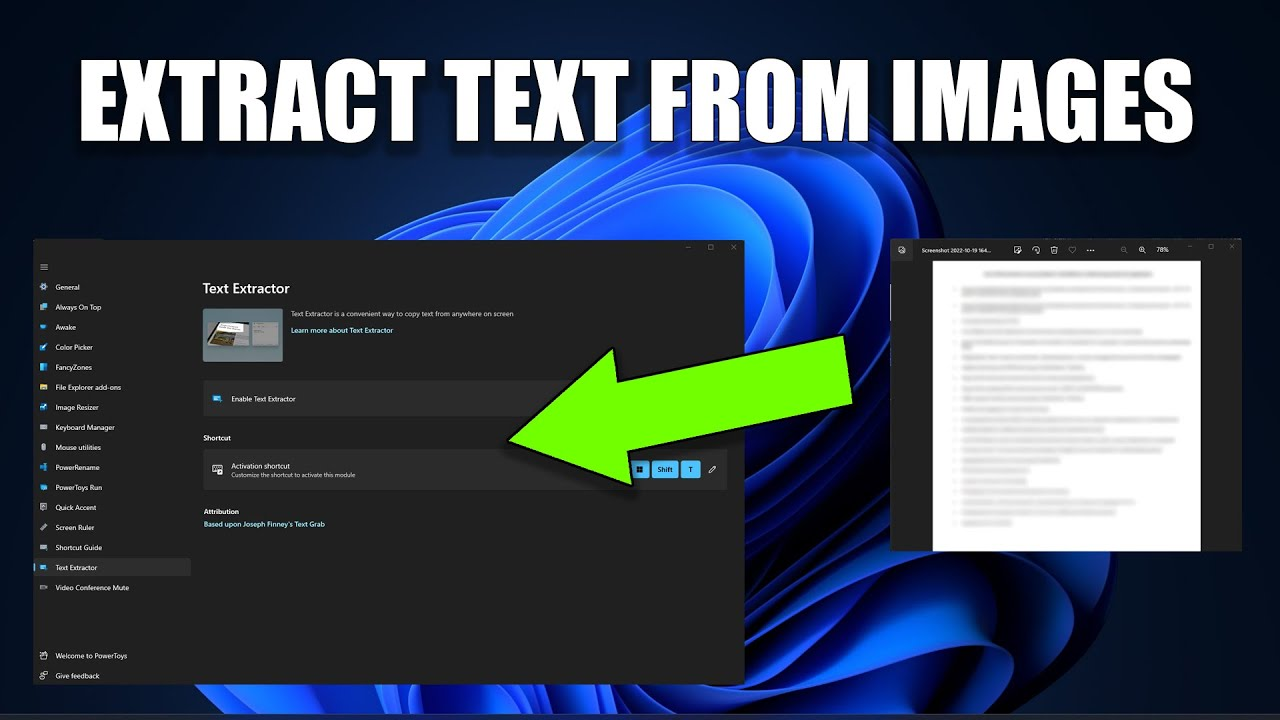
What Is the Google Tool to Extract Text from an image? (Full Guide)
If you’ve ever taken a photo and wished you could instantly copy the text inside it, you’ve probably wondered: What is the Google tool to extract text from an image? The simplest answer is Google Lens, one of the most powerful OCR tools available. But if you need faster or more accurate results online, you can also use an advanced image-to-text converter that extracts text from photos, screenshots, scanned files, and documents within seconds.
Let’s explore how Google Lens works, what it can do, and when you should use alternatives for better accuracy.
What Is Google Lens?
Google Lens is an AI-powered tool that analyzes images and identifies objects, text, products, barcodes, and more. One of its most useful features is text extraction, which allows you to copy, search, or translate text directly from any image.
Where You Can Use Google Lens
- Android phones (built into the camera)
- iPhone (via Google app)
- Chrome browser
- Google Photos
This makes it one of the easiest tools for copying text from images on the go.
How Google Lens Extracts Text from an Image
Google Lens uses optical character recognition (OCR) to identify characters and convert them into editable text.
Here’s how it works:
- Lens scans the image
- Detects words, symbols, and sentences
- Reconstructs the text
- Let’s you copy, search, or export it
While Google Lens is powerful, it may not always extract formatting accurately or handle handwritten text as well as specialized OCR tools.
How to Extract Text Using Google Lens (Step-by-Step)
1. Open Google Lens
On Android, open your camera and tap the Lens icon.
On iOS, open the Google app and tap the Lens icon.
2. Capture or Upload an Image
You can photograph text or select an existing picture.
3. Select the Text Option
Lens highlights all detected text automatically.
4. Copy or Share the Text
Tap Copy, Search, Select All, or Translate depending on what you need.
Google Lens vs Online OCR Tools
While Google Lens is convenient, online OCR tools may be more accurate for detailed work.
Why You Might Choose an Online Tool
- Supports high-resolution documents
- Better accuracy for scanned files
- Works well with handwriting
- No need to install apps
- Easily extracts text from screenshots
If you need reliable online OCR, try an advanced tool like this image-to-text converter for clearer results.
When Should You Use Google Lens?
Use Google Lens when:
- You need quick text extraction
- You’re scanning something using a mobile phone
- You want translation or instant search
- You’re capturing casual content like signs or notes
Example:
Snapping a picture of a restaurant menu and copying the text for translation.
When Should You Use an OCR Converter Instead?
Use an online OCR tool when:
- The image contains complex fonts
- The text is handwritten
- The document needs high accuracy
- You’re working from a laptop or PC
- You need bulk text extraction
Tools like from image to text offer more precision for professional use.
Best Google Alternatives for Image-to-Text Extraction
If you’re looking beyond Google Lens, here are powerful options:
1. Online OCR Converters
These tools extract text from JPG, PNG, PDF, and screenshots easily.
2. Desktop OCR Software
Good for bulk scanning or official documents.
3. Browser Extensions
Useful when capturing text from websites.
Each offers different benefits depending on your workflow.
- Google Lens alternatives
- Extracting text from scanned PDFs
- Try this image-to-text tool for fast and accurate text extraction.
FAQs (People Also Ask)
1. What Google tool extracts text from an image?
Google Lens is the main tool used to extract text from photos, screenshots, and documents.
2. Can Google Photos extract text from images?
Yes, Google Photos includes Lens features that allow you to copy text from stored images.
3. Is Google Lens better than OCR tools?
Lens is great for mobile use, but specialized OCR platforms offer higher accuracy for detailed documents.
4. Can Google Lens extract handwritten text?
Yes, but accuracy depends on handwriting clarity. For better results, use an advanced OCR tool.
5. What is the easiest way to extract text on a computer?
Upload your image to an online OCR tool like fromimagetotext.com and copy the extracted text instantly.
Conclusion
Now you know exactly what the Google tool to extract text from an image is—Google Lens. It’s fast, convenient, and built into many devices. However, if you need more accuracy, especially for screenshots, scanned documents, or handwritten notes, a dedicated OCR tool, such as from image to tex,t provides far better results.
If this guide helped you, feel free to share it or explore more OCR resources to boost your productivity.