What is the Best Way to Copy Text? Easy Methods You Can Use
In today’s digital world, knowing the best way to copy text can save you hours of manual work. Whether you’re working on documents, extracting information from websites, or converting text from images, efficient text copying is essential. Tools like From Image to Text make it easy to extract text from images, while built-in computer and mobile features simplify copying from digital sources.
This guide explores proven methods, tips, and tools to copy text quickly, accurately, and efficiently.
Why Copying Text Efficiently Matters
Copying text is more than a basic task—it’s a productivity booster. Here’s why it’s important:
- Saves Time: Avoid typing out content manually.
- Ensures Accuracy: Reduce mistakes when transferring text.
- Improves Organization: Easily compile information from multiple sources.
- Enhances Accessibility: Text can be converted for screen readers or into editable formats.
Methods to Copy Text Effectively
1. Copying Text from Websites and Documents
Step 1: Use Keyboard Shortcuts
- Windows: Ctrl + C to copy, Ctrl + V to paste.
- Mac: Command + C to copy, Command + V to paste.
Step 2: Use Right-Click Options
- Highlight the text → right-click → select “Copy.”
- Paste where you need it in a document, email, or note.
Step 3: Use Browser Extensions
- Extensions like Copyfish or Project Naptha allow copying text directly from images or web content.
2. Copying Text from Images
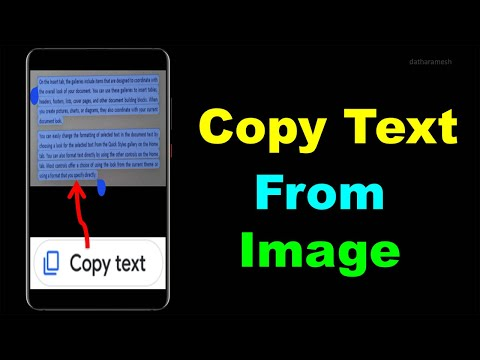
Images can contain valuable text that isn’t immediately selectable. OCR (Optical Character Recognition) tools help with this:
- Online Tools: From Image to Text lets you upload an image and instantly extract text.
- Mobile Apps: Google Lens, Microsoft Lens, and Adobe Scan convert images into editable text.
- Tips for Accuracy: Use high-resolution images and clear, legible text.
3. Copying Text from PDFs
PDFs can be tricky if they’re scanned or protected. Here’s what works:
- Editable PDFs: Use Ctrl + C or Command + C directly on the text.
- Scanned PDFs: Use OCR tools such as Adobe Acrobat or online converters.
- Google Drive: Upload the PDF → Open with Google Docs → copy the extracted text.
4. Using Built-in Computer Tools
Most operating systems include features to extract and copy text easily:
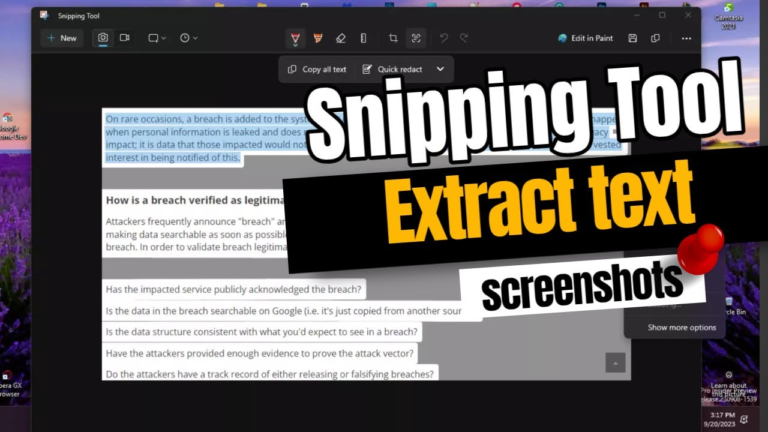
- Windows OneNote: Right-click an image → “Copy Text from Picture.”
- Mac Live Text (macOS Monterey+): Highlight text in an image → copy and paste.
- Clipboard Managers: Tools like Ditto or Paste help manage multiple copied texts efficiently.
5. Keyboard Shortcuts and Efficiency Hacks
- Use Ctrl + A / Command + A to select all text in a document or input field.
- Combine Shift + Arrow Keys with copy shortcuts to select and copy precisely.
- Use the clipboard history features to copy multiple texts without losing prior content.
Tips for Best Results When Copying Text
- Always check if text is protected or read-only.
- Ensure high-quality images when using OCR tools.
- Avoid copying text from low-resolution screenshots.
- Use reputable tools to prevent data loss or errors.
- Proofread after extraction to correct formatting or errors.
Frequently Asked Questions (FAQs)
Q1: What is the easiest way to copy text from an image?
Using online OCR tools like From Image to Text or mobile apps like Google Lens works best.
Q2: Can I copy text from protected PDFs?
Yes, you can use OCR tools or Google Drive OCR to extract text from protected PDFs.
Q3: Are there free tools to copy text efficiently?
Yes! Google Lens, From Image to Text, and OneNote are free and reliable.
Q4: Can I copy handwritten text from images?
Yes, but results depend on handwriting clarity and image quality.
Q5: Is copying text from websites safe?
Yes, copying publicly visible text is safe. Avoid using sensitive or copyrighted content without permission.
Conclusion
Knowing the best way to copy text can make your workflow faster, more efficient, and less error-prone. Whether you’re copying from websites, PDFs, or images, using the right tools and methods ensures accuracy and saves time. Try using From Image to Text for your next image-based text extraction. Share your experience in the comments or subscribe for more practical tips on boosting productivity!