Can I Take a Picture of Writing and Convert to Text? Easy Methods Explained
Have you ever wondered, “Can I take a picture of writing and convert to text?” Whether it’s a handwritten note, a classroom whiteboard, or a printed document, converting images of writing into editable text can save time and increase productivity. Tools like From Image to Text make this process simple, enabling you to convert static text into digital text in seconds.
In this guide, we’ll explore practical methods, step-by-step instructions, and tips for quickly and accurately converting any picture of writing into text.
Why Converting Pictures of Writing to Text Matters
Transforming images into editable text is more than just a convenience. Here’s why it’s important:
- Save Time: Avoid manual typing from handwritten or printed content.
- Enhance Accuracy: Reduce errors when transcribing information.
- Better Organization: Store and edit notes digitally.
- Accessibility: Make text usable for screen readers or digital documents.
Methods to Convert Pictures of Writing to Text
1. Use Online OCR Tools
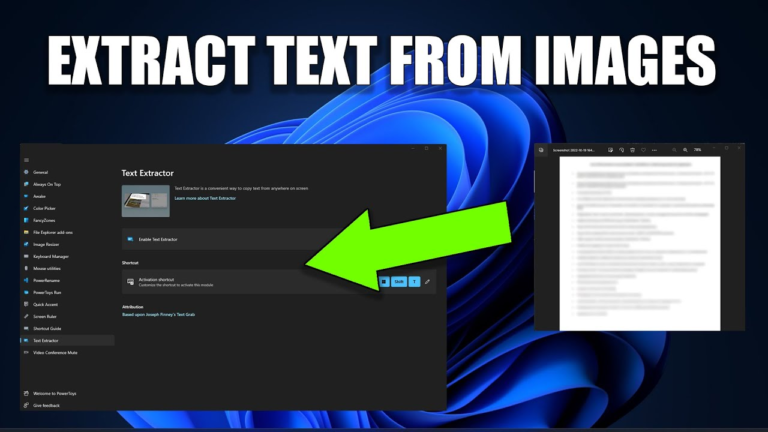
OCR (Optical Character Recognition) technology detects text in images and converts it into editable formats.
Steps to Use From Image to Text:
- Open the website and upload your image.
- Select the language of the text for higher accuracy.
- Click Convert or Extract.
- Copy the resulting text into your notes, documents, or emails.
Tip: High-resolution, well-lit images produce the most accurate results.
2. Use Smartphone Apps
Modern smartphones offer apps that simplify text extraction from photos:
- Google Lens (Android & iOS): Open the image → tap the Lens icon → select text → copy.
- Microsoft Lens: Scan documents and convert to Word or OneNote.
- Adobe Scan: Turns pictures into editable PDFs or text documents.
Pro Tip: Ensure your handwriting or text is clear and legible for better recognition.
3. Built-in Device Features
Many devices now include built-in OCR features:
- iPhone (Live Text, iOS 15+): Tap text in a photo → select → copy.
- Mac (Preview App): Highlight and copy text from images in supported formats.
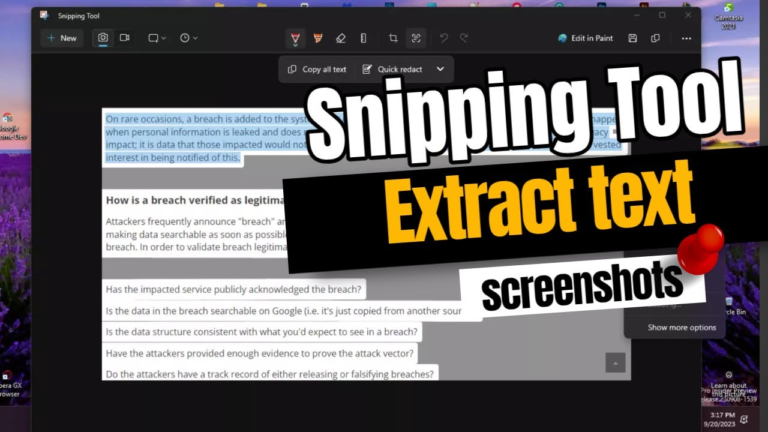
- Windows OneNote: Insert image → right-click → “Copy Text from Picture.”
4. Converting Text from Scanned Documents
Scanned documents or notebooks can also be converted:
- Upload to Google Drive → Open with Google Docs → OCR converts the image into editable text.
- Use PDF OCR tools like Adobe Acrobat for scanned PDFs.
- For handwritten notes, ensure handwriting is clear for better recognition.
Tips for Accurate Text Conversion
- Use high-quality, well-lit images.
- Avoid images with shadows, blurs, or cluttered backgrounds.
- Crop irrelevant sections before uploading.
- Proofread the extracted text for formatting or minor OCR errors.
- Use trusted OCR tools to ensure privacy and accuracy.
Frequently Asked Questions (FAQs)
Q1: Can I convert handwritten notes to text?
Yes! Clear handwriting works best with OCR tools like From Image to Text or Google Lens.
Q2: Are these methods free?
Many tools, including Google Lens, Apple Live Text, and From Image to Text, are free to use.
Q3: Can I convert text from any image format?
Most tools support JPG, PNG, BMP, and PDF images.
Q4: Is OCR accurate for messy handwriting?
Accuracy decreases with unclear or messy handwriting, but legible text generally converts well.
Q5: Can I convert text on my phone?
Yes, apps like Google Lens, Microsoft Lens, Adobe Scan, and Apple Live Text allow conversion on mobile devices.
Conclusion
So, can you take a picture of writing and convert it to text? Absolutely! Whether using online tools, smartphone apps, or built-in device features, OCR technology makes it fast, accurate, and convenient. From handwritten notes to printed documents, you can transform any picture into editable text effortlessly. Try converting your next note or document using From Image to Text and see how much time you save. Share your experience in the comments or subscribe for more tech tips and guides!