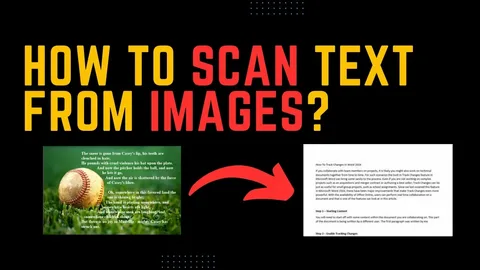
How to Scan a Picture and Turn It Into Text (Step-by-Step Guide)
If you’re wondering how to scan a picture and turn it into text, you’re not alone. Many people take photos of documents, notes, or screenshots and later realize they need the actual text inside them. Instead of typing everything manually, you can quickly convert images into editable text using OCR tools like this image-to-text converter, which scans pictures and extracts text accurately in seconds.
This guide walks you through simple methods, helpful tips, and the best tools to scan any picture and convert it into readable, editable text.
Why Scan a Picture and Turn It Into Text?
Pictures are great for saving information, but they limit what you can do with the content. Turning an image into text allows you to edit, copy, search, and reuse the information easily.
People usually need this when working with:
- Printed documents
- Handwritten notes
- Receipts and invoices
- Study material
- Screenshots of text
Learning how to scan a picture and turn it into text saves time and improves productivity.
What Technology Converts Pictures Into Text?
The process relies on OCR (Optical Character Recognition). OCR analyzes the shapes of letters in an image and converts them into machine-readable text.
Modern OCR tools can:
- Recognize printed and handwritten text
- Detect multiple languages
- Read text from photos, scans, and screenshots
- Maintain good accuracy even with low-quality images
Online OCR tools are now faster and easier than traditional scanners.
How to Scan a Picture and Turn It Into Text (Best Methods)
Below are the most reliable ways to convert images into text, explained step by step.
Method 1: Use an Online Image to Text Tool (Recommended)
This is the easiest and most accurate option for most users.
Steps
- Take a photo or scan the picture.
- Upload the image to an image-to-text tool.
- Let the OCR process the image.
- Copy or download the extracted text.
Why this works well
- No installation required
- Supports JPG, PNG, screenshots, and scans
- Handles paragraphs and handwriting
- Works on desktop and mobile
This method is ideal for students, professionals, and content creators.
Method 2: Scan the Picture Using a Mobile Phone
Modern smartphones can act as scanners.
How it works
- Use your phone camera to capture the image
- Enhance clarity using built-in scanning features
- Upload the image to an OCR converter
This method works best when the image is well-lit and focused.
Method 3: Use Built-In OCR on PC or Mac
Some operating systems offer basic OCR features.
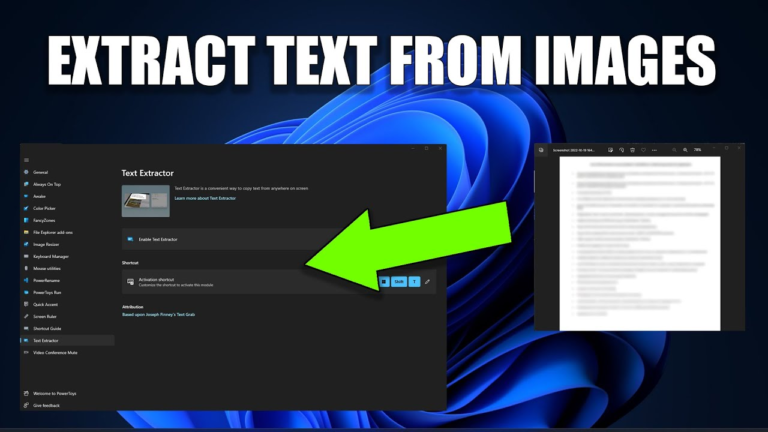
- Windows: Newer Snipping Tool versions support text detection
- Mac: Live Text allows copying text from images
These options are useful for short text but may struggle with long paragraphs.
Tips for Better Text Extraction Accuracy
Even the best OCR tools work better when images are clear.
Before scanning
- Use good lighting
- Avoid shadows and glare
- Keep text straight, not tilted
- Use high-resolution images
After scanning
- Review the extracted text
- Fix minor spelling or formatting issues
Using a reliable OCR tool, like from image to text, significantly improves accuracy.
Common Problems When Converting Pictures to Text
Sometimes results aren’t perfect. Here’s why:
- Blurry or pixelated images
- Fancy or decorative fonts
- Poor contrast between text and background
- Extremely messy handwriting
In such cases, enhancing the image or retaking the photo often solves the issue.
Best Use Cases for Image-to-Text Conversion
Turning pictures into text is useful for:
- Digitizing old documents
- Editing printed content
- Copying notes for study
- Reusing content for blogs or reports
- Extracting data from receipts
Knowing how to scan a picture and turn it into text makes daily tasks faster and easier.
Internal Linking Opportunities
This article can naturally link to related topics such as:
- Image to text conversion guides
- OCR technology explanations
- Screenshot to text tutorials
- Handwriting to text tools
Example natural link:
Use this image-to-text converter to scan pictures and extract text instantly.
FAQs – People Also Ask
1. How do I scan a picture and convert it to text?
Take a photo or scan the image, then upload it to an OCR tool to extract the text.
2. Can handwritten text be converted into editable text?
Yes, many modern OCR tools support handwriting recognition, though accuracy depends on clarity.
3. Do I need a scanner to convert pictures to text?
No. A smartphone camera and an online OCR tool are enough.
4. Is image-to-text conversion accurate?
Accuracy is high for clear images and printed text. Handwriting accuracy varies.
5. What is the fastest way to extract text from a picture?
Uploading the image to an online OCR tool is the fastest and easiest method.
Conclusion
Now you know exactly how to scan a picture and turn it into text without complicated software or manual typing. Whether you’re working with photos, screenshots, or scanned documents, OCR tools make the process simple and efficient.
For fast, accurate results, try this image-to-text converter and turn any picture into editable text within seconds. If this guide helped you, share it with others who might find it useful.