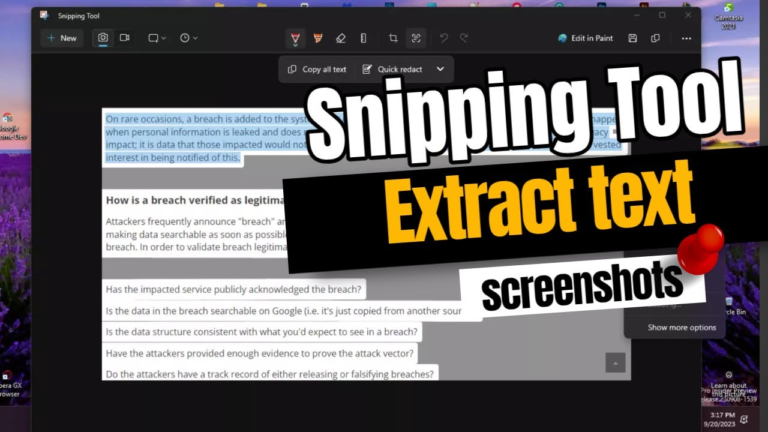
How to Use a Text Extractor: A Step-by-Step Guide for Beginners
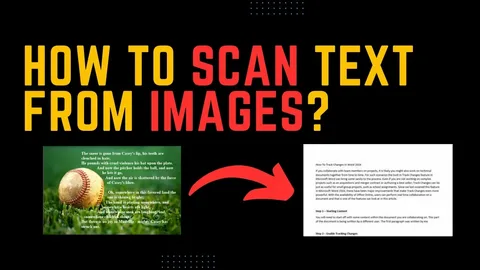
If you often work with images, screenshots, or scanned documents, learning how to use a text extractor can instantly boost your productivity. With simple tools like From Image to Text, you can turn pictures into editable text within seconds—no manual typing required. Whether you’re a student, freelancer, business owner, or researcher, text extraction can completely change how you handle information.
In this guide, you’ll learn exactly how to use a text extractor, the best practices for accurate results, and common mistakes to avoid.
What Is a Text Extractor?
A text extractor is a tool that pulls readable, editable text from non-editable sources such as:
- Images
- Screenshots
- Scanned documents
- PDFs
- Handwritten notes
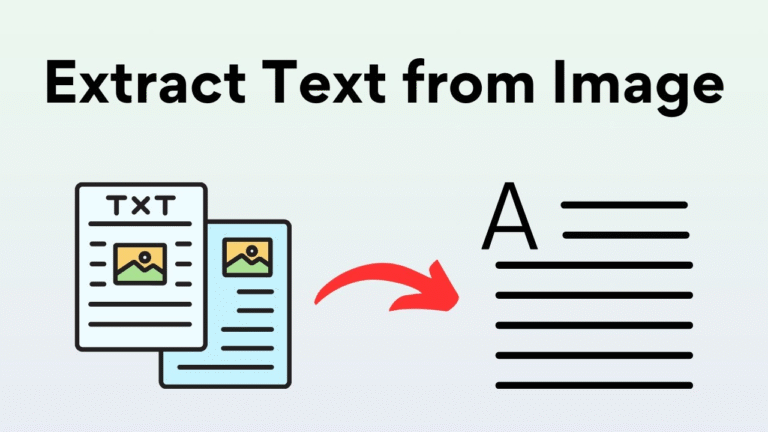
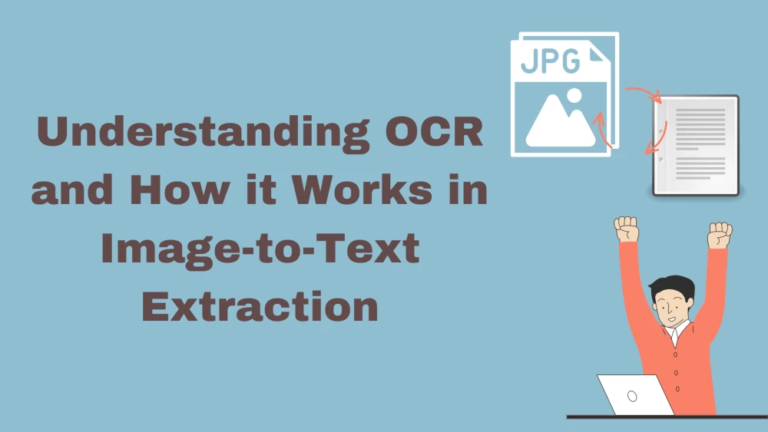
These tools use OCR (Optical Character Recognition) technology to detect characters inside visual files and convert them into digital text you can copy, edit, and store.
In simple terms, a text extractor converts images into real text.
Why You Should Use a Text Extractor
Using a text extractor saves time and eliminates typing errors. Key benefits include:
- Faster data entry
- Higher accuracy
- Easy document digitization
- Searchable records
- Better workflow efficiency
- Improved accessibility
Instead of retyping long content from images, you can extract everything in seconds.
How to Use a Text Extractor (Step-by-Step)
Here is the simplest and most reliable method to use an online text extractor.
Step 1: Open a Trusted Text Extraction Tool
Go to a reliable OCR tool such as From Image to Text.
Step 2: Upload Your Image or File
Choose a file from your device. Most tools support:
- JPG
- PNG
- BMP
- WebP
Step 3: Select the Language
Choose the language used in your image for better accuracy.
Step 4: Start the Extraction
Click the Extract Text or Convert button.
Step 5: Copy and Use the Text
Once processing is complete, copy the extracted text and paste it into:
- Documents
- Notes
- Emails
- Forms
- Spreadsheets
That’s it—text extraction in under a minute.
How to Use a Text Extractor on Mobile
You can also extract text directly from your phone:
Android Users
- Use Google Lens
- Open the photo
- Tap the Lens icon
- Select and copy the text
iPhone Users
- Use Apple Live Text (iOS 15+)
- Open a photo
- Tap on the visible text
- Copy instantly
For higher accuracy, you can still upload mobile photos to From Image to Text.
Using a Text Extractor for Scanned Documents and PDFs
For scanned files and PDFs:
- Upload the scanned file to a text extractor
- Let the OCR process complete
- Download or copy the extracted text
- Save it as a Word file, Google Doc, or plain text
This method is widely used for:
- Office records
- Legal files
- Academic research
- Old paper documents
Tips for Best Text Extraction Results
To get the most accurate output every time:
- Use high-resolution images
- Ensure good lighting
- Avoid blurred or tilted photos
- Crop the unnecessary background
- Keep text straight and centered
- Proofread after extraction
Better image quality always means better OCR accuracy.
Common Mistakes to Avoid
- Uploading low-quality images
- Using cluttered backgrounds
- Ignoring language selection
- Skipping proofreading
- Using untrusted extraction tools
Avoiding these mistakes can drastically improve your results.
Use Cases of Text Extraction
Text extractors are useful in many real-world situations:
- Students converting notes from photos
Office staff digitizing paperwork - Online sellers are extracting product details
- Researchers processing screenshots
- Writers converting printed content into digital drafts
It’s one of the most practical automation tools available today.
Frequently Asked Questions (FAQs)
How do I use a text extractor for free?
You can use free online tools like From Image to Text or Google Lens without any cost.
Can a text extractor read handwritten text?
Yes, but accuracy depends on handwriting clarity and image quality.
Is text extraction safe for personal documents?
Reliable tools do not store files permanently, but always read privacy policies before uploading sensitive content.
Can I extract text from a PDF with images?
Yes, OCR-based extractors can detect text from scanned PDFs.
Do I need to install software to use a text extractor?
No. Many tools work directly in your browser without any installation.
Conclusion
Knowing how to use a text extractor can save hours of manual work and dramatically improve your daily productivity. From images and screenshots to scanned documents and PDFs, text extraction allows you to convert visual content into editable, searchable text within seconds. Try your first extraction using From Image to Text today and experience how effortless digital conversion can be. Share this guide with anyone who still types from images manually!