How to Uncover Text in a Screenshot? (Complete Guide for Beginners)
If you’re trying to figure out how to uncover text in a screenshot, you’re not alone. Many users take screenshots of documents, notes, or images and later need the text inside them. Whether the text is hidden, blurred, or simply part of an image file, you can extract it easily using smart tools like this image to text converter, which turns screenshot text into editable content within seconds.
This guide explains every method to reveal, recover, or extract text from screenshots—whether the text is typed, handwritten, low-quality, or partially hidden.
Why Do People Want to Uncover Text in a Screenshot?
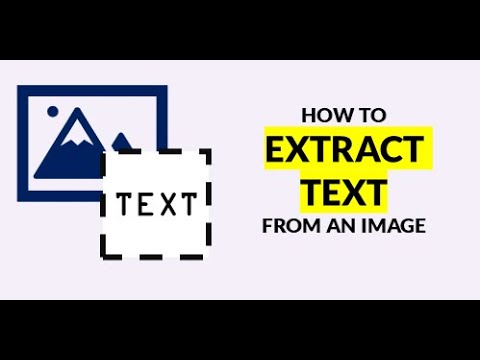
Screenshots often lock text inside an image. You can SEE the words, but you cannot COPY them. This becomes frustrating when you’re dealing with:
- Screenshots of online forms
- Notes shared in images
- Scanned documents
- Social media screenshots
- Tutorials that include text on the screen
Extracting this text saves time, improves productivity, and makes your work easier.
How to Uncover Text in a Screenshot: 4 Effective Methods
Below are the most reliable techniques, including quick tools and advanced OCR methods.
1. Use an Online OCR Tool (Fastest & Easiest Method)
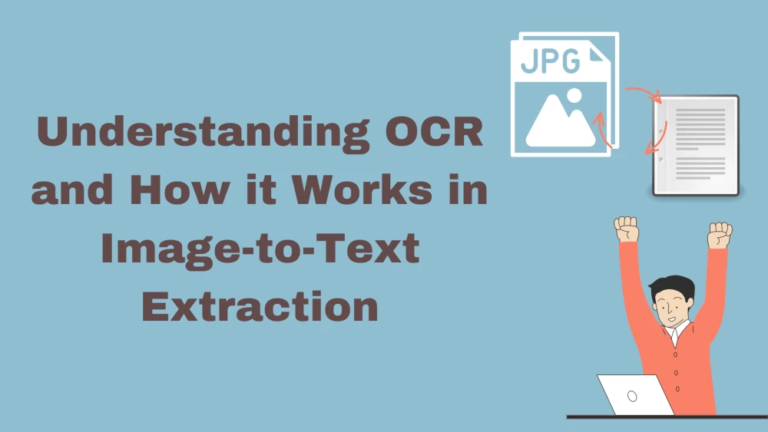
This is the most popular method because OCR instantly converts an image into text.
How it works:
- Upload your screenshot
- The tool scans it
- You receive clean, editable text
Try using the image to text tool for fast extraction.
Benefits
- Works with low-quality images
- Converts JPEG, PNG, and screenshots
- Supports handwriting
- No app installation needed
This method is perfect when you want clean, accurate text quickly.
2. Use Built-In Tools Like Google Lens
Google Lens is another popular option for uncovering hidden or unreadable text in screenshots.
Steps:
- Open Google Lens
- Upload your screenshot
- Highlight detected text
- Copy or export it
This is ideal for mobile users who want a quick solution without switching devices.
3. Enhance the Screenshot Before Extracting Text
Sometimes the text is visible but too faint or blurred. You can enhance it first, then extract it.
Enhancement techniques include:
- Increasing contrast
- Adjusting brightness
- Using filters
- Sharpening the image
Once enhanced, upload it to an OCR tool for better accuracy.
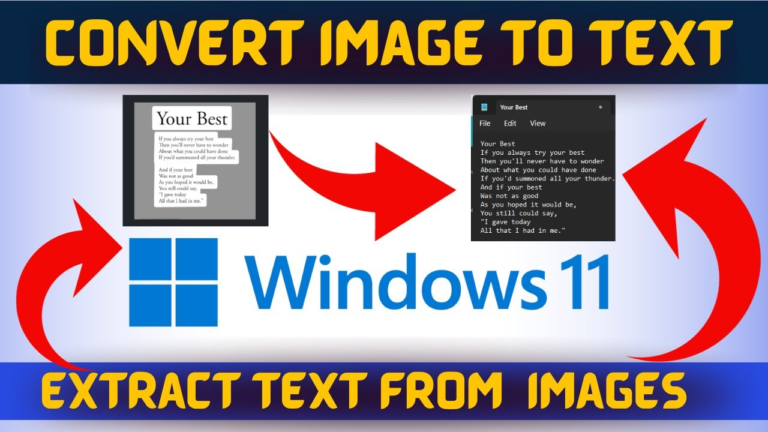
4. Use Screenshot Text Recognition on PC or Mac
Modern operating systems now include built-in text recognition.
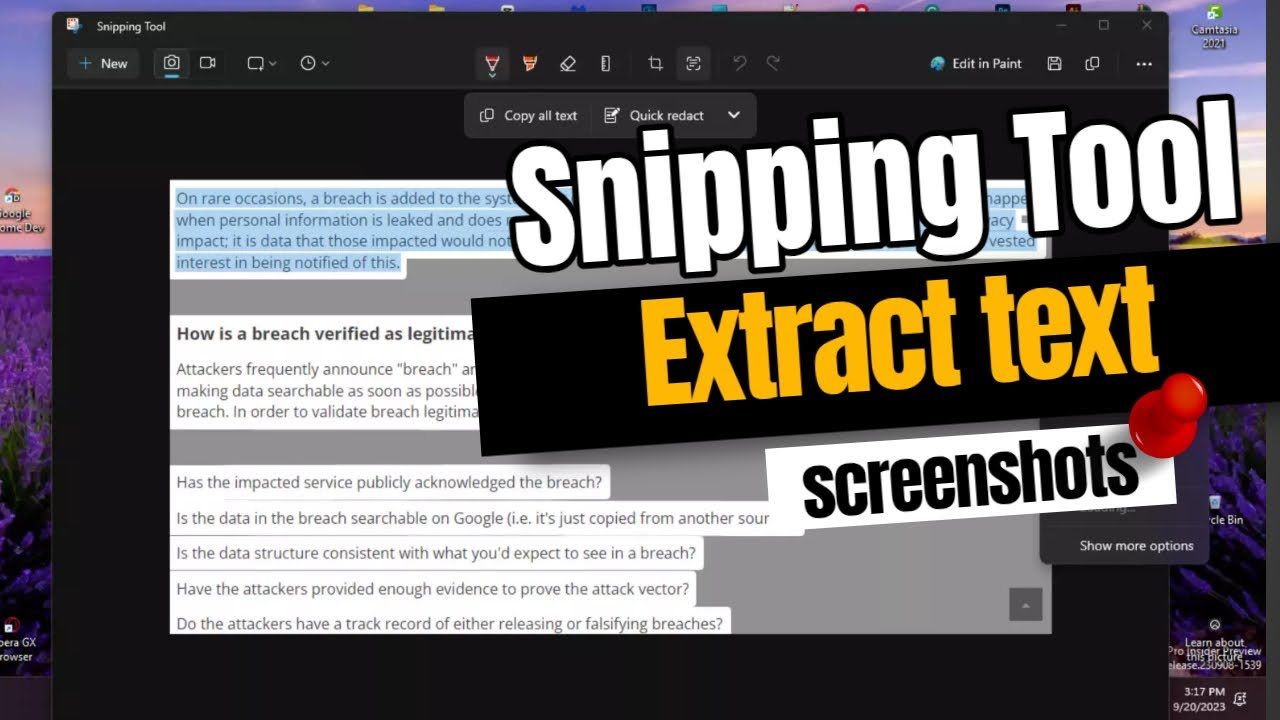
Windows
Its Snipping Tool (new versions) supports OCR.
Mac
macOS Live Text allows you to highlight and copy text from screenshots.
Best For
Short bits of text, quick copying, or basic recognition.
Can You Uncover Blurred or Blacked-Out Text?
This is one of the most common questions.
Important Note
If text has been intentionally blurred, blacked out, or hidden for privacy, you cannot reveal it. No extraction tool can uncover content that has been permanently obscured.
However, if the text is only:
- lightly blurred
- pixelated
- low-resolution
…then OCR may still extract part or all of it—depending on quality.
Tools like image-to-text can often read even difficult images.
Best Situations to Use OCR for Screenshot Text
Use OCR when:
- The screenshot contains paragraphs
- You want to edit or share the text
- The image contains handwriting
- The text is small or faint
- You need high accuracy
OCR is designed for these situations and saves hours of manual typing. Try this image to text converter for accurate screenshot extraction.
FAQs
1. How do I extract text from a screenshot?
Upload your screenshot to an OCR tool like fromimagetotext.com, and it will convert the text into editable form.
2. Can I uncover blurred text in a screenshot?
If the blur is intentional, no. If it’s due to low quality, OCR may still detect the words.
3. Is OCR safe for screenshots with private information?
Yes, reputable tools delete files automatically after processing.
4. Can I extract handwritten text from screenshots?
Yes, many OCR tools support handwriting recognition.
5. How do I uncover text on a PC?
Use OCR tools, Google Photos, Mac Live Text, or Windows Snipping Tool (with OCR support).
Conclusion
Understanding how to uncover text in a screenshot can save you a lot of time. Whether you’re working with study notes, documents, or saved images, OCR tools offer the fastest method. Google Lens is great for mobile, but for high accuracy and online editing, the image to text converter remains one of the most reliable solutions.
If this article helped you, share it or explore more tools for easier digital productivity.