How to Cut Text from an Image: Easy Ways to Extract Written Text
In today’s digital world, extracting text from images is a skill many of us need—whether it’s for work, school, or personal projects. Imagine receiving a photo of a document or a screenshot with important information, but you can’t copy it directly. That’s where knowing how to cut text from an image or extract written text from an image becomes incredibly useful.
With the right tools and techniques, you can quickly transform static images into editable, searchable text—saving time and effort. In this guide, we’ll explore practical methods, tips, and tools for extracting text seamlessly.
Why Extracting Text from an Image Matters
Text extraction is not just a tech trick; it’s a productivity booster. Here’s why it matters:
- Save Time: No more manual typing from images or scanned documents.
- Improve Accuracy: Automated tools reduce human errors when transcribing text.
- Better Organization: Convert images to editable text to store in documents or spreadsheets.
- Accessibility: Make text from images usable for visually impaired users with screen readers.
Methods to Cut Text from an Image
There are several ways to extract text depending on the device and tool you choose.
1. Use Online OCR Tools
OCR (Optical Character Recognition) tools are designed to detect and convert text from images into editable formats.
- Step 1: Upload your image to an OCR website like From Image to Text.
- Step 2: Select the language of the text for better accuracy.
- Step 3: Click “Convert” or “Extract” to get the text.
- Step 4: Copy the extracted text to your document or notes.
Pro Tip: OCR works best with clear, high-resolution images.
2. Use Mobile Apps
Smartphone apps make it simple to extract text on the go.
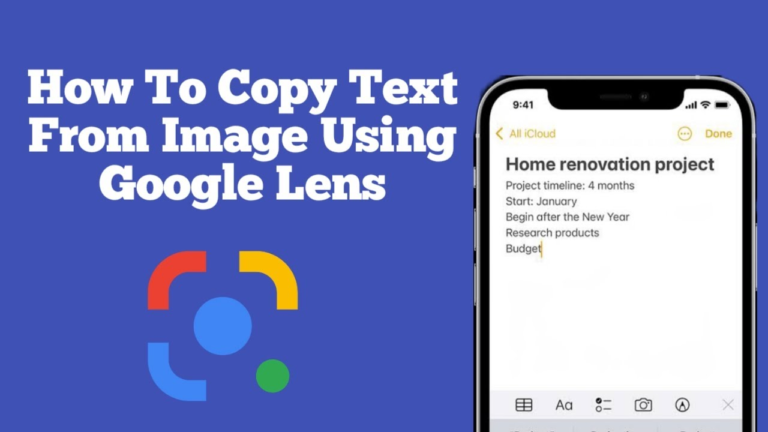
- Google Lens: Available on Android and iOS. Point your camera at the image → tap the text → copy.
- Microsoft Lens: Ideal for scanned documents and notes. Save the text to Word or OneNote.
- Adobe Scan: Converts images or receipts into editable text or PDFs.
3. Built-in Computer Tools
Most modern computers also have features to extract text:
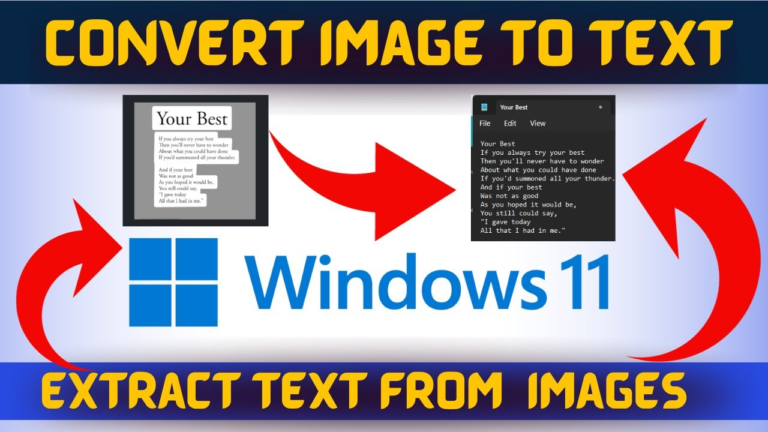
- Windows: Use OneNote’s “Copy Text from Picture” feature.
- Mac: Use the Live Text feature in macOS (Monterey and above). Open an image → highlight the text → copy.
4. Browser Extensions
If you often work online, browser extensions can help:
- Copyfish: Extract text from any image or video frame in your browser.
- Project Naptha: Highlight and copy text directly from images on websites.
Tips for Better Text Extraction
Even the best tools may struggle with poor-quality images. Keep these tips in mind:
- Use high-resolution images to ensure text clarity.
- Make sure text is well-lit and not blurry.
- Avoid backgrounds with patterns that can confuse OCR software.
- If possible, crop unnecessary parts of the image before extracting text.
Step-by-Step Example: Extracting Text Using From Image to Text
- Go to the From Image to Text website.
- Click “Upload Image” and select your file.
- Choose the correct language for better accuracy.
- Click the “Extract Text” button.
- Copy the extracted text into your document or editing software.
This process works for screenshots, scanned documents, photos of receipts, or handwritten notes (if legible).
Frequently Asked Questions (FAQs)
Q1: How do I extract text from an image for free?
You can use free OCR tools like From Image to Text, Google Lens, or Microsoft OneNote to extract text without paying.
Q2: Can I extract handwritten text from images?
Yes, but results may vary. High-quality, clear handwriting works best with advanced OCR tools.
Q3: What image formats are supported?
Most tools support JPG, PNG, BMP, and GIF formats.
Q4: Is it possible to extract text from PDF images?
Yes! Convert PDF to an image or use OCR-enabled PDF tools like Adobe Acrobat or online converters.
Q5: Are these methods safe to use?
Yes, especially if you use trusted services like From Image to Text for private or sensitive images.
Conclusion
Extracting text from images doesn’t have to be a tedious task. Whether you’re using online tools, mobile apps, or built-in computer features, the key is to choose the method that fits your needs and ensures accuracy.
Next time you receive an image containing important text, you can quickly convert it into editable and searchable text—boosting your productivity and saving hours of manual work. Try extracting text from your first image today using From Image to Text and share your experience in the comments. Don’t forget to subscribe for more practical tech tips!