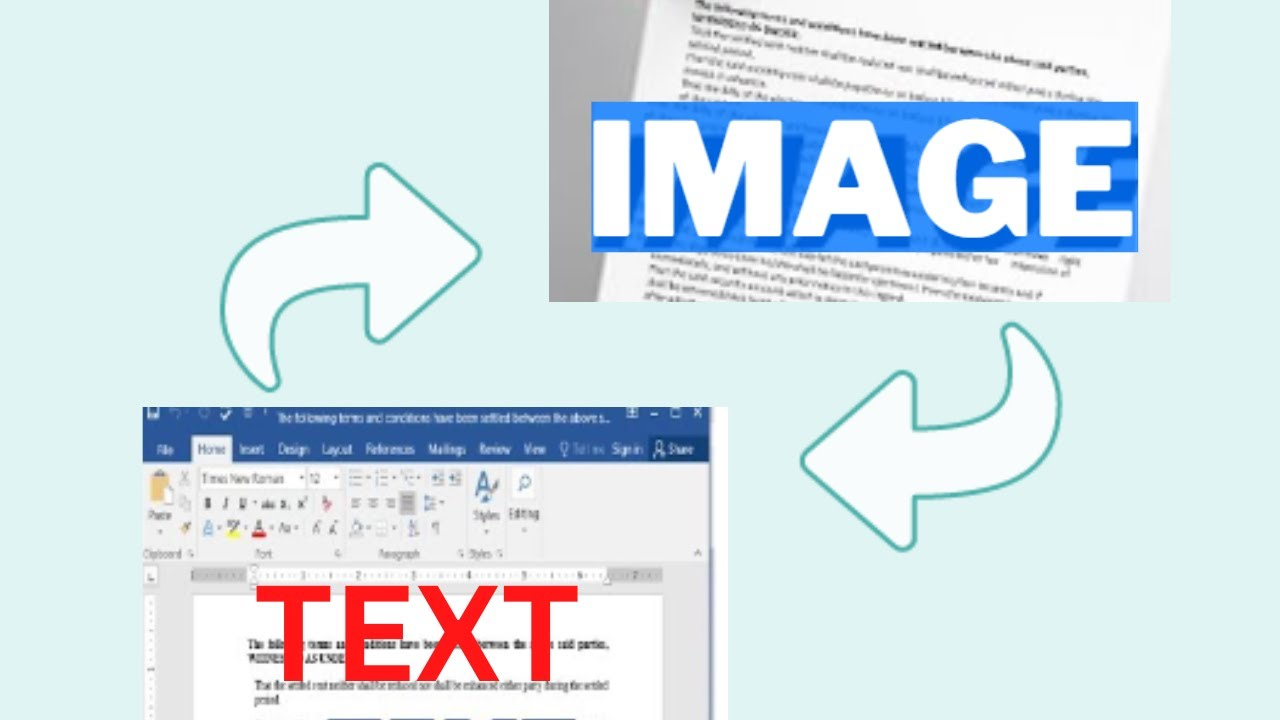
How to Convert Picture to Word Text Easily (Step-by-Step Guide)
If you’ve ever received important information in image form—such as screenshots, scanned documents, or photos—you’ve probably asked how to convert a picture to Word text quickly and accurately. Manually typing text from images is time-consuming and frustrating. Thankfully, modern tools now make it easy to extract text from images and turn it into editable Word documents. Many users start this process using image-to-text conversion tools because they save time and reduce errors.
In this guide, you’ll learn practical methods, tools, and tips to convert picture content into Word text without technical skills.
What Does “Convert Picture to Word Text” Mean?
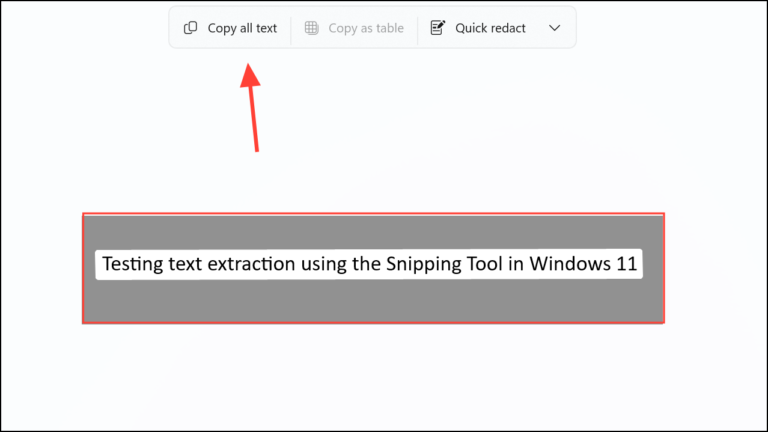
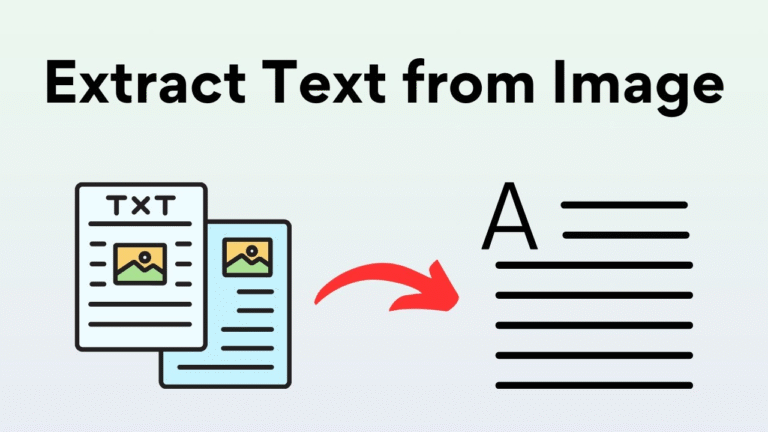
When we talk about converting a picture to Word text, we’re referring to extracting readable, editable text from an image file and placing it into a Word document. This process relies on OCR (Optical Character Recognition) technology, which detects letters and words inside images.
Common image formats include:
- JPG or JPEG
- PNG
- Scanned PDFs
- Mobile screenshots
Once converted, the text can be edited, copied, or formatted like any normal Word document.
Why Converting Images to Word Text Is Important
Understanding how to convert picture to Word text is useful in many everyday situations.
People use this process to:
- Edit scanned documents
- Copy notes from screenshots
- Digitize printed material
- Save time on manual typing
- Reuse content for reports or assignments
Students, professionals, and business owners rely on image-to-text conversion for productivity.
Best Methods to Convert Picture to Word Text
There are multiple ways to handle image-to-text conversion, depending on your device and needs.
1. Using Online Image to Text Tools
Online OCR tools are the fastest and most convenient option. These tools work directly in your browser and require no installation.
General steps:
- Upload your image
- Let the tool scan the text
- Download or copy the Word-formatted text
These tools support multiple languages and handle most image qualities well.
2. Convert Picture to Word Text Using Microsoft Word
Many users don’t realize Word itself can help with basic OCR.
How it works:
- Save your image as a PDF
- Open the PDF in Microsoft Word
- Word converts the image into editable text
This method works best for clear images with readable fonts.
3. Mobile Apps for Image to Word Conversion
Smartphone users can convert pictures to text using OCR apps.
These apps allow you to:
- Take a photo directly
- Extract text instantly
- Export content to Word format
This option is ideal for notes, receipts, and printed pages captured on the go.
Step-by-Step: How to Convert Picture to Word Text Online
Here’s a simple step-by-step process anyone can follow:
- Choose a reliable image-to-text converter
- Upload the picture you want to convert
- Select Word or DOC format as output
- Start the conversion
- Download the editable Word file
This method works well for most users and requires no technical knowledge.
Tips for Better Image-to-Text Accuracy
To get clean and accurate results, image quality matters.
Helpful tips:
- Use clear, high-resolution images
- Avoid blurry or tilted photos
- Ensure good lighting
- Use plain backgrounds
- Avoid handwritten text when possible
Following these tips improves OCR accuracy significantly.
Common Use Cases for Picture to Word Text Conversion
This process is widely used across different fields.
Examples include:
- Students converting lecture slides
- Office workers digitizing paperwork
- Freelancers extracting content from screenshots
- Businesses converting scanned contracts
Knowing how to convert picture to Word text helps streamline all these tasks.
Image to Word vs Manual Typing
Manual typing:
- Time-consuming
- Prone to mistakes
- Not scalable
Image-to-text conversion:
- Faster
- More accurate
- Easy to repeat
That’s why OCR-based conversion is now the preferred method.
Security & Privacy Considerations
When using online tools, always choose trusted platforms. Avoid uploading sensitive documents to unknown services. Look for tools that clearly mention privacy protection and automatic file deletion.
FAQs – People Also Ask
How do I convert picture to Word text for free?
You can use free online OCR tools or basic features in Microsoft Word for image-to-text conversion.
Can I convert handwritten images to Word text?
Some tools support handwriting, but accuracy depends on clarity and writing style.
Does image quality affect text conversion?
Yes. Clear, high-resolution images produce better results.
Can I convert images to Word text on mobile?
Yes, many OCR apps allow image-to-Word conversion directly from smartphones.
Is OCR safe to use?
It is safe when using reputable tools that protect user data.
Conclusion: Turn Images into Editable Text in Minutes
Now that you know how to convert picture to Word text, you no longer need to waste time retyping content. With the right tools and simple steps, you can quickly extract text from images and edit it freely in Word.
If you found this guide helpful, share it, leave a comment, or explore more productivity tips to make your digital work easier.