How Do I Copy Text on My Phone? Easy Steps for Android and iPhone
Ever come across important information on your phone but wondered, “How do I copy text on my phone?” Whether it’s a message, an email, or a text within an image, knowing how to copy text efficiently can save you time and effort. Tools like From Image to Text make it even easier to extract text from images, while built-in features on Android and iPhone allow you to copy text from websites, apps, and documents effortlessly.
In this guide, we’ll explore step-by-step methods, tips, and tools to copy text on your phone quickly and accurately.
Why Copying Text on Your Phone is Useful
Copying text on a phone is more than a convenience—it’s a productivity booster. Here’s why it matters:
- Save Time: No need to manually type long messages or notes.
- Improve Accuracy: Reduce mistakes when transferring text.
- Organize Information: Easily store important data from messages, emails, or apps.
- Work on the Go: Extract text anytime, anywhere without a computer.
Methods to Copy Text on Your Phone
1. Copy Text from Websites and Apps
Step 1: Highlight the Text
- Tap and hold the text you want to copy.
- Adjust the selection handles to include the exact text.
Step 2: Copy the Text
- Tap Copy from the pop-up menu.
- Paste it into your notes, email, or any app using Paste.
Tip: Use browser features like “Select All” to copy entire sections quickly.
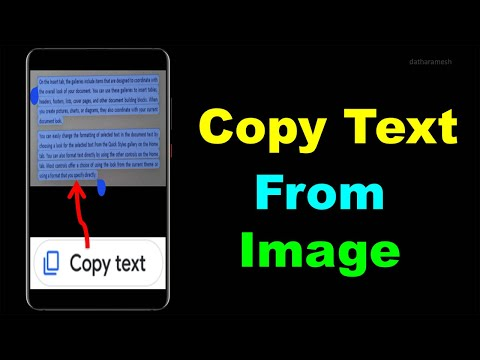
2. Copy Text from Images
Sometimes, text is embedded in an image or screenshot. Here’s how to handle it:
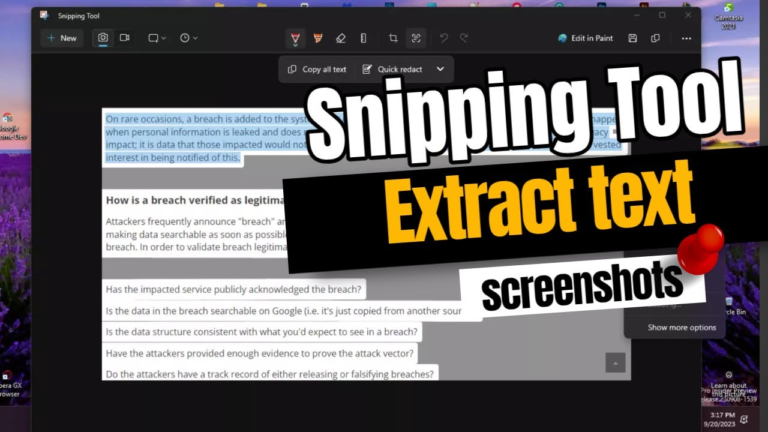
- Google Lens (Android & iOS): Open the image → tap the Lens icon → select text → copy.
- From Image to Text: Upload the image → extract text → copy to your device.
- Apple Live Text (iPhone iOS 15+): Tap the text in a photo → select → copy.
Pro Tip: Clear, high-resolution images produce the most accurate results.
3. Copy Text from PDFs and Documents
PDFs on phones can be tricky, especially scanned files:
- Editable PDFs: Tap and hold text → copy.
- Scanned PDFs: Use apps like Adobe Scan, Google Drive OCR, or Microsoft Lens to extract text.
- Tips: Upload PDFs to Google Drive → open with Google Docs → copy extracted text.
4. Use Clipboard Management Apps
Clipboard apps let you copy, store, and paste multiple text snippets:
- Android: Apps like Clipper or Clipboard Manager.
- iOS: Built-in clipboard stores the last copied text; third-party apps can save multiple items.
- Benefits: Manage multiple copies, quickly paste anywhere, and improve workflow efficiency.
5. Shortcuts and Efficiency Tips
- Use Select All to copy entire messages or emails.
- Use Share → Copy Text in apps that support it.
- For web pages, use Reader Mode (Safari) or Chrome’s simplified view to make text easier to select.
Tips for Better Text Copying on Mobile
- Ensure text is clear and legible, especially in images.
- Keep your apps and OS updated for the latest text extraction features.
- Use trusted OCR tools to avoid data loss.
- Always proofread copied text for accuracy.
Frequently Asked Questions (FAQs)
Q1: How do I copy text from an image on my phone?
Use Google Lens, Apple Live Text, or From Image to Text to select and copy text from images.
Q2: Can I copy text from protected PDFs on my phone?
Yes, using OCR tools or Google Drive’s OCR function can extract text from protected PDFs.
Q3: Is it possible to copy text from apps that don’t allow selection?
Yes, use OCR apps or screenshot-to-text tools to extract content from unselectable text.
Q4: Are there free tools to copy text on mobile?
Yes, Google Lens, Apple Live Text, and From Image to Text are free and reliable.
Q5: Can I copy multiple text snippets at once on my phone?
Yes, clipboard manager apps allow storing and pasting multiple copied items efficiently.
Conclusion
Knowing how to copy text on your phone improves productivity and saves time, whether you’re working, studying, or managing information on the go. From direct text selection to extracting text from images with From Image to Text, there’s a method for every need.
Call to Action: Try these methods today and make copying text on your phone effortless. Share your experience in the comments or subscribe for more practical tips and guides!