Can Windows Extract Text From an Image? Here’s What You Need to Know
If you’ve ever taken a screenshot, scanned a document, or received text inside an image, you may have wondered if Windows can extract text from an image without using complicated software. The good news is that Windows now offers built-in and supported ways to pull text from images quickly and accurately. Many users exploring this feature start by learning about Windows image-to-text tools because it saves time and avoid manual typing.
In this guide, you’ll discover how Windows handles image text extraction, which tools work best, and how to get accurate results step by step.
What Does It Mean When Windows Extracts Text From an Image?
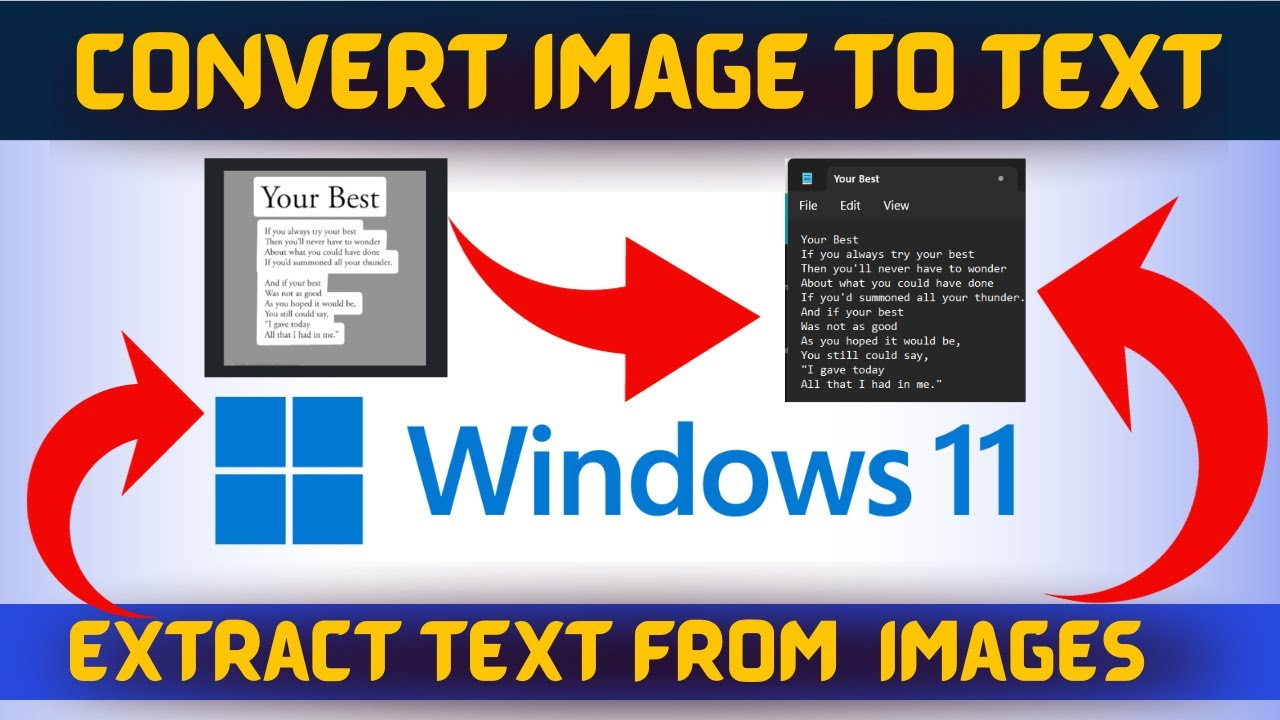
When Windows extracts text from an image, it uses OCR (Optical Character Recognition) technology to identify letters, words, and layout inside image files. The extracted text becomes selectable, editable, and reusable.
This works with:
- Screenshots
- Photos taken with a phone
- Scanned documents
- Images saved as JPG or PNG
Understanding can Windows extract text from an image helps users unlock productivity features already available on their system.
Built-In Ways Windows Can Extract Text From Images
Windows has introduced several native options that allow text extraction without third-party software.
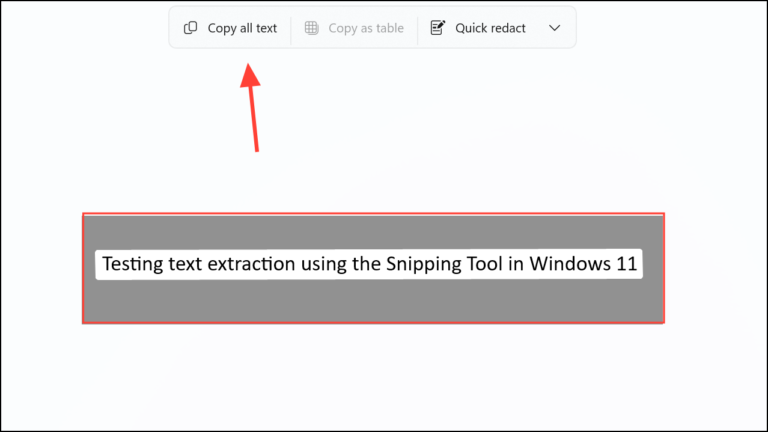
Using Windows Snipping Tool (Text Actions)
Newer versions of Windows include text recognition inside the Snipping Tool.
How it works:
- Take a screenshot using the Snipping Tool
- Select the text recognition option
- Highlight and copy text directly
This method is fast and ideal for short text snippets from screens.
Using Microsoft OneNote
OneNote is a powerful option many users overlook.
How OneNote helps:
- Insert an image into OneNote
- Right-click and choose extract text
- Copy the recognized text anywhere
It works well for screenshots, notes, and printed material.
Using Microsoft Word on Windows
Word can indirectly extract text from images.
Process overview:
- Convert the image into a PDF
- Open the PDF in Word
- Let Word transform it into editable text
This method is useful for documents with structured content.
Step-by-Step: How to Extract Text From an Image on Windows
Here’s a simple workflow anyone can follow:
- Open the image on your Windows system
- Choose a built-in tool like Snipping Tool or OneNote
- Use the text recognition feature
- Copy the extracted text
- Paste it into your document
This approach answers the question can Windows extract text from an image with a clear yes.
Accuracy: How Good Is Windows OCR?
Windows OCR accuracy depends on image quality and text clarity.
It performs best when:
- Text is printed (not handwritten)
- Images are clear and high-resolution
- Fonts are standard and readable
For everyday use, Windows delivers reliable results without extra software.
Tips to Improve Text Extraction on Windows
Even the best tools work better with the right input.
Helpful tips:
- Use clear screenshots instead of photos
- Avoid shadows and blur
- Keep text straight and well-lit
- Increase image resolution when possible
These small adjustments greatly improve OCR accuracy.
When Built-In Windows Tools Are Enough
For many users, Windows tools are more than sufficient.
They are ideal for:
- Copying text from screenshots
- Extracting notes from slides
- Reusing text from PDFs
- Quick everyday tasks
If your needs are simple, you may not need extra software.
When You Might Need Advanced Tools
Sometimes built-in options aren’t enough.
You may need advanced tools if:
- Images contain handwriting
- Layouts include tables and columns
- Text is heavily stylized
- Bulk image processing is required
In such cases, dedicated OCR tools can offer more control.
Common Myths About Windows Image Text Extraction
Many users underestimate Windows capabilities.
Myths explained:
- “Windows can’t read images” → It can
- “You need paid software” → Often unnecessary
- “OCR is too technical.” → Windows makes it simple
Understanding these points helps users work smarter.
FAQs – People Also Ask
Can Windows extract text from an image automatically?
Yes, Windows tools like Snipping Tool and OneNote can recognize and extract text easily.
Does Windows OCR work offline?
Some features work offline, especially in OneNote and Word.
Can Windows extract text from handwritten images?
Handwriting recognition is limited and depends on clarity.
Is Windows OCR accurate?
It is accurate for clear, printed text and standard fonts.
Do I need extra software to extract text on Windows?
For basic needs, built-in Windows tools are usually enough.
Conclusion: Windows Makes Image Text Extraction Simple
So, can Windows extract text from an image? Absolutely. With built-in tools like Snipping Tool, OneNote, and Word, Windows users can turn images into editable text in just a few steps.
If this guide helped you, share it, leave a comment, or explore related resources to make better use of Windows productivity features.