Can iPhone Extract Text? A Complete Guide for iOS Users
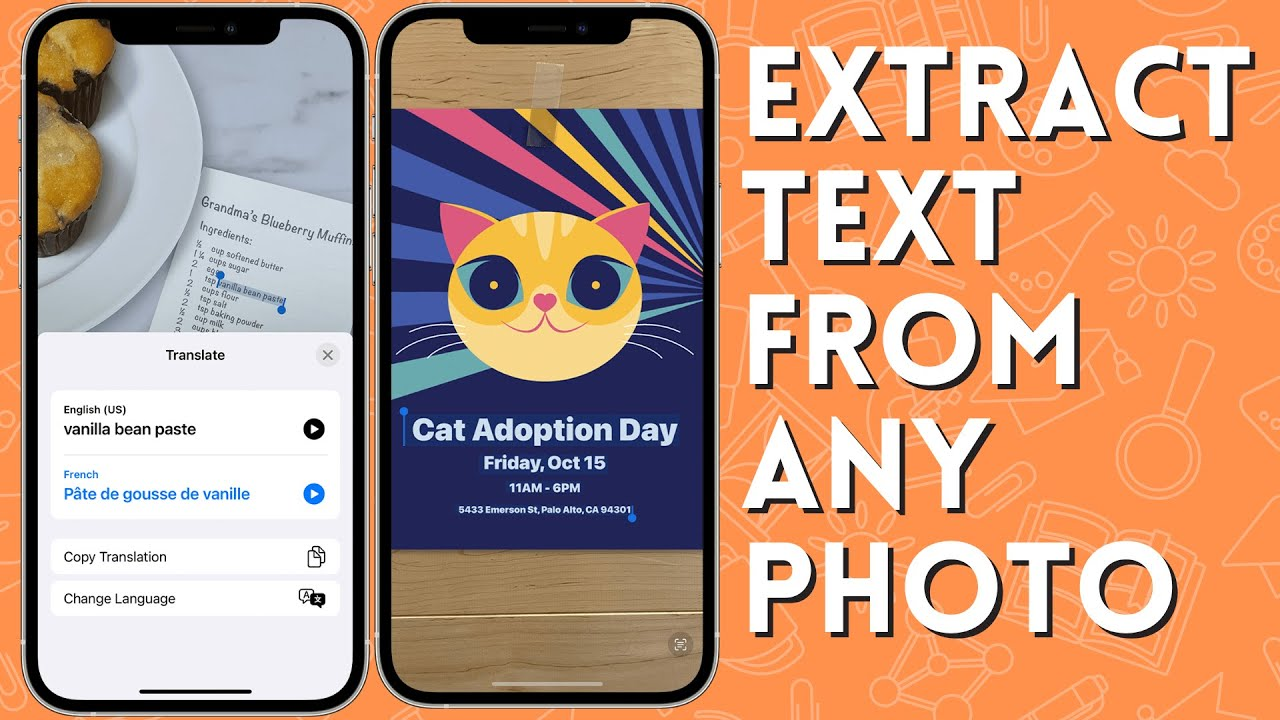
If you’ve ever wondered, “Can iPhone extract text?”, the answer is yes! Modern iPhones come equipped with powerful tools like Live Text that let you instantly extract text from photos, screenshots, and scanned documents. Whether you’re a student, professional, or casual user, knowing how to extract text on your iPhone can save hours of typing and improve productivity.
In this guide, we’ll explore exactly how iPhone text extraction works, step-by-step methods, best practices, and tips to get the most accurate results.
What Does “iPhone Text Extraction” Mean?
iPhone text extraction refers to the ability to detect and copy text from any image or visual content directly on your device. This includes:
- Screenshots
- Photos of notes or books
- Scanned documents
- Signs or menus captured via camera
Apple’s Live Text feature uses OCR (Optical Character Recognition) to turn images into editable text, making it easier to copy, search, and share information.
How to Extract Text on iPhone: Step-by-Step
Here’s the simplest method to use iPhone text extraction:
Step 1: Open the Photo or Screenshot
Select the image containing the text you want to extract.
Step 2: Activate Live Text
- Tap the text icon on the bottom-right corner (for iOS 15+), or press and hold the text in the image.
- Highlight the text you want to copy.
Step 3: Copy or Share
- Tap Copy to save the text to your clipboard.
- Or tap Share to send it to apps like Notes, Mail, or Messages.
Step 4: Paste and Use
- Paste the text into documents, emails, or text editing apps.
Pro Tip: High-resolution photos and clear lighting improve text recognition accuracy.
Using an iPhone for Text Extraction in Real Life
For Students
- Convert handwritten notes into editable text
- Summarize lecture screenshots
- Organize study materials
For Professionals
- Extract data from scanned invoices or contracts
- Quickly copy information from documents
- Digitize printed reports
For Everyday Users
- Copy addresses from photos
- Translate foreign text instantly
- Extract recipes or instructions from images
Best Practices for Accurate Text Extraction on iPhone
- Use well-lit and clear images
- Keep text straight and centered
- Avoid blurry or tilted photos
- Crop unnecessary background
- Proofread after copying for errors
Better image quality ensures more reliable results.
Can iPhone Extract Handwritten Text?
Yes, iPhone’s Live Text can recognize legible handwriting, but results are best with neat and clear writing. For messy or complex handwritten notes, combining iPhone extraction with tools like From Image to Text can improve accuracy.
Additional iPhone Tools for Text Extraction
Besides Live Text, you can use:
- Notes App Scanner – Scan documents directly and copy text
- Files App – Convert scanned PDFs into editable text
- Third-Party OCR Apps – Tools like Adobe Scan or Microsoft Lens
- Translate App – Copy and translate text from images
These options make the iPhone one of the most versatile devices for on-the-go text extraction.
Frequently Asked Questions (FAQs)
Can iPhone extract text from screenshots?
Yes, using Live Text, you can select, copy, and share text from any screenshot.
Which iPhones support text extraction?
iPhones with iOS 15 or later support Live Text in Photos, Camera, and Safari.
Can iPhone extract text in multiple languages?
Yes, Live Text supports multiple languages, including English, Spanish, French, and more.
Is text extraction accurate on iPhone?
Accuracy depends on image clarity, lighting, and text legibility. High-resolution images yield the best results.
Can I extract text from handwritten notes on iPhone?
Yes, as long as the handwriting is legible. Using OCR apps can help improve recognition for messy handwriting.
Conclusion
So, can iPhone extract text? Absolutely! With features like Live Text and document scanning, iPhones make it easy to turn images, screenshots, and scanned notes into editable digital text. Pairing your iPhone with tools like From Image to Text can further enhance accuracy, especially for handwritten or complex documents. Try extracting text from your next photo or screenshot on iPhone today and see how much time you save. Share this guide with friends or colleagues who still type manually from images!