Can Google Copy Text from an Image? How to Extract Text Easily
In our increasingly digital world, images often contain important information—whether it’s a screenshot, a scanned document, or a photo of notes. But what if you need the text from these images? Many users ask: “Can Google copy text from an image?” The good news is that Google provides several tools and techniques to extract text quickly and accurately, saving you from tedious manual typing.
In this guide, we’ll explore how Google can copy text from an image, step-by-step methods, tips for better results, and alternative tools for text extraction.
How Google Can Copy Text from an Image
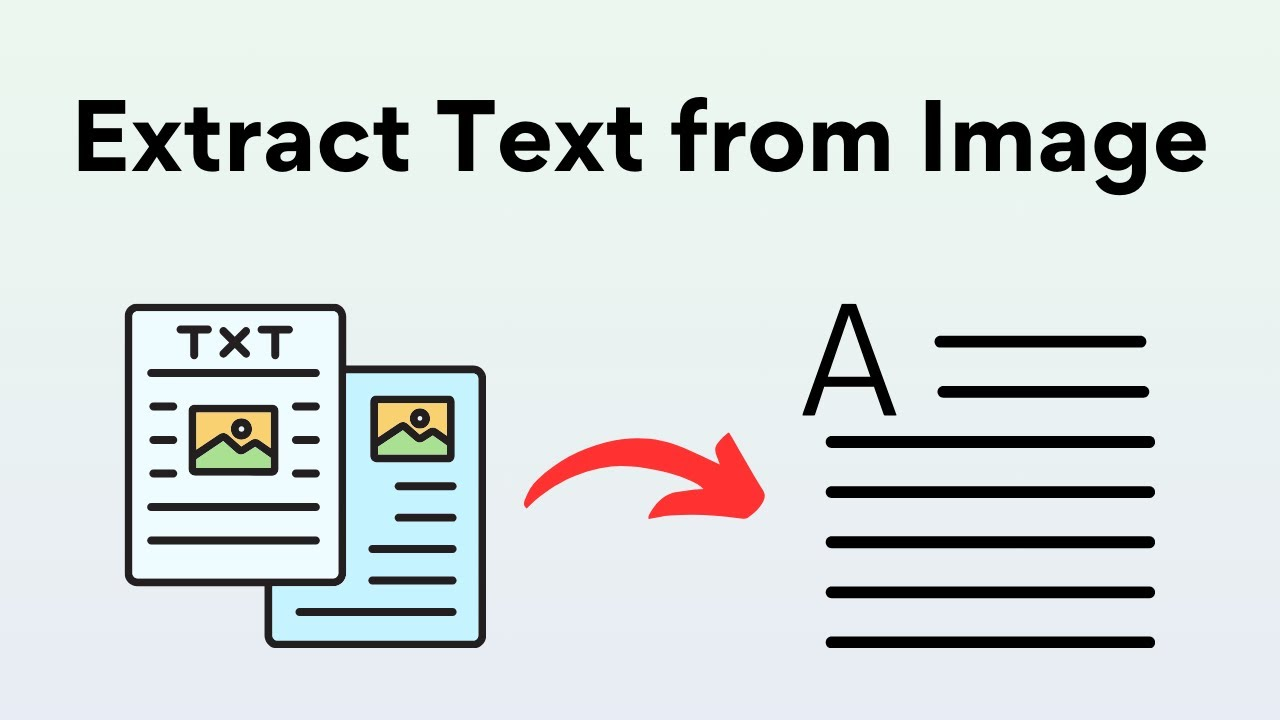
Google uses Optical Character Recognition (OCR) technology to detect and extract text from images. OCR is designed to recognize letters, numbers, and symbols within an image and convert them into editable text.
Google offers multiple ways to copy text from images:
- Google Lens: Available on Android, iOS, and within Chrome.
- Google Drive OCR: Converts uploaded image files and scanned PDFs into editable Google Docs.
These tools make it easy to extract text for work, study, or personal use.
Using Google Lens to Copy Text from an Image
Step 1: Open Google Lens
- On your mobile device, open the Google app or Google Photos.
- Tap the Lens icon at the bottom or top of your screen.
Step 2: Point or Upload Your Image
- You can either take a photo in real-time or select an existing image from your gallery.
Step 3: Highlight the Text
- Google Lens will automatically detect text areas.
- Tap Select Text to highlight the part you want to copy.
Step 4: Copy and Use the Text
- Click Copy text and paste it into a document, notes app, or email.
- You can also use Translate or Search directly from Lens for convenience.
Tip: Lens works best with clear, well-lit images.
Using Google Drive to Extract Text from Images
Step 1: Upload the Image
- Go to Google Drive and upload your image or scanned PDF.
Step 2: Open with Google Docs
- Right-click the uploaded image → select Open with → Google Docs.
- Google Docs will automatically use OCR to extract the text below the image.
Step 3: Edit and Save
- Review the text for any errors.
- Copy it to another document or save it directly in Google Docs for future use.
Tip: High-resolution images improve OCR accuracy in Google Drive.
Tips for Better Text Extraction Using Google
Even Google’s tools may struggle with poor-quality images. Follow these tips:
- Use clear, high-resolution images.
- Ensure the text is legible and the background is not cluttered.
- Avoid skewed or rotated text unless Lens can adjust perspective.
- If needed, crop unnecessary parts of the image before uploading.
Alternative Tools to Extract Text from Images
Besides Google, there are other excellent tools:
- From Image to Text: Free online OCR tool for instant text extraction.
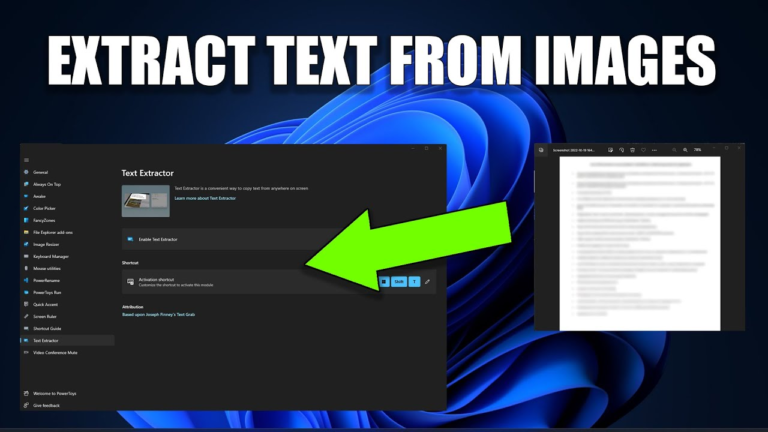
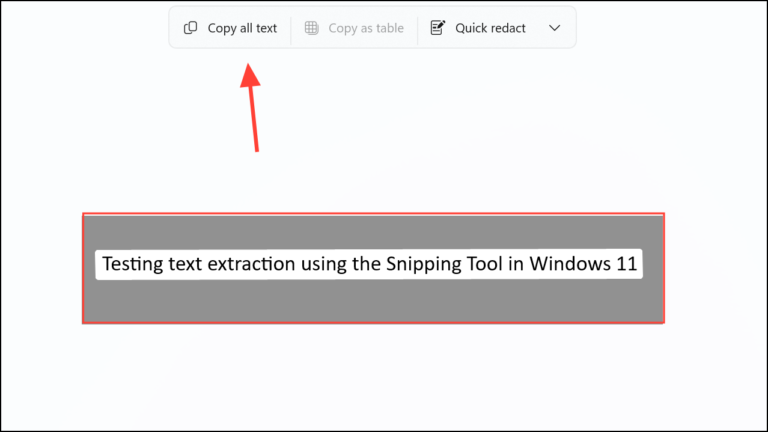
- Microsoft OneNote: Copy text from images on Windows or Mac.
- Adobe Scan: Converts photos or receipts into editable text or PDFs.
These alternatives can complement Google’s methods for optimal results.
Frequently Asked Questions (FAQs)
Q1: Can Google copy handwritten text from images?
Yes, but results may vary. Clear, legible handwriting works best with Google Lens.
Q2: Is it free to extract text using Google?
Yes, Google Lens and Google Drive OCR are completely free to use.
Q3: What image formats can Google recognize?
Google Lens and Drive OCR support JPG, PNG, GIF, BMP, and PDF formats.
Q4: Can Google translate text extracted from images?
Yes! Google Lens can directly translate text in real-time while highlighting it.
Q5: Do I need an internet connection?
Yes, Google Lens and Drive require an internet connection for OCR processing.
Conclusion
So, can Google copy text from an image? Absolutely! Whether using Google Lens or Google Drive, extracting text has never been easier. With a few clicks or taps, you can convert images into editable text, saving time and improving productivity. Try extracting text from your next image using Google Lens or Google Drive today. Share your experience in the comments or explore From Image to Text for more OCR tools!