Can Excel Extract Text From an Image? (Full Guide + Easier Alternatives)
If you’ve ever tried copying text from a picture, screenshot, or scanned document, you’ve probably wondered: Can Excel extract text from an image?
The short answer is yes—Excel can extract text, but with limitations. And if you want faster, more accurate results, tools like From Image to Text make the process even simpler.
In this guide, you’ll learn how Excel handles image-to-text conversion, its pros and cons, and the best alternatives for cleaner, more accurate OCR results.
What You’ll Learn
- Does Excel support OCR?
- How to extract text from an image in Excel (step-by-step)
- Best use cases where Excel works well
- Limitations of Excel OCR
- A better method using online OCR tools
- FAQs related to “Excel image text extraction”.
Does Excel Extract Text From an Image?
Yes, Excel includes a built-in OCR feature—but only in Microsoft Excel for Microsoft 365 and Excel online using the “Insert Data from Picture” function.
Excel can extract text from:
- Printed documents
- Tables inside images
- Screenshots
- Handwritten notes (accuracy varies)
However, Excel is built for data handling, not advanced OCR. That’s why many users switch to online OCR converters like From Image to Text for cleaner results, especially when dealing with paragraphs or low-quality images.
How to Extract Text From an Image Using Excel
1. Use the “Insert Data From Picture” Feature
This method works best when your image contains tables or structured data.
Steps:
- Open Excel (desktop or online).
- Go to Data → From Picture → Picture From File.
- Upload your image.
- Excel will scan and display the detected content.
- Review the extracted text and confirm to insert it into your sheet.
This method is great for:
- Scanned invoices
- Bills
- Receipts
- Printed tables
But if the image contains:
- Long paragraphs
- Curved text
- Shadows or glare
Excel may produce errors.
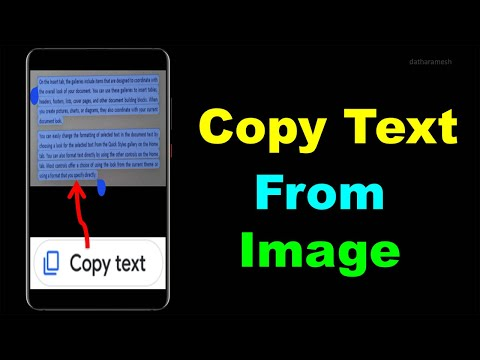
2. Import an Image Using Excel Mobile (Camera OCR)
If you use the Excel mobile app, you can extract text using the camera.
Steps:
- Tap the Insert Data from Picture icon.
- Capture a photo of the document.
- Crop and enhance if needed.
- Excel converts the text and asks for confirmation.
- Confirm and insert.
This is useful for quick, on-the-go text capture, but accuracy again depends on the clarity of the photo.
Where Excel’s OCR Works Best
Excel performs well when your image contains:
✔ Structured information
Tables, columns, lists, and grids are detected accurately.
✔ High-quality printed text
Clear, sharp text in a standard font produces solid results.
✔ Financial or numeric data
Invoices, receipts, price lists, and sheets align perfectly in Excel.
Excel OCR Limitations You Should Know
While Excel can extract text, it’s not ideal for professional OCR work.
1. Struggles With Paragraphs
Excel breaks sentences, misreads words, and often changes alignment.
2. Not Accurate With Handwriting
Any cursive or handwritten notes become messy or unreadable.
3. Poor Results With Low-Resolution Images
Blurred, shadowed, or compressed images reduce accuracy.
4. No Batch Conversion
Excel cannot convert multiple images at once.
5. No advanced text formatting
Fonts, line breaks, and structure are lost during extraction.
If you need clean text, high accuracy, or bulk conversion, an OCR tool like From Image to Text is a far better choice.
A Better Way: Use an Online OCR Tool
If you want a simpler, faster method, use a dedicated converter like:
Why is it better than Excel
- Converts paragraphs, documents, and handwriting
- Handles blurry or low-quality images
- Works with JPG, PNG, screenshots, PDFs, scans
- Extracts text accurately
- No installation required
- Creates editable text instantly
This is perfect if your goal is quick, error-free text extraction without the formatting issues Excel introduces.
When Should You Use Excel vs. Online OCR?
| Situation | Excel | Online OCR |
| Tables & structured data | ✔ Best choice | Good |
| Long paragraphs | ❌ Poor | ✔ Excellent |
| Handwriting | ❌ Low accuracy | ✔ Better |
| Bulk images | ❌ Not supported | ✔ Easy |
| Fast, one-step extraction | ✔ Good | ✔ Best |
FAQ: Can Excel Extract Text From an Image?
1. Does Excel have a feature to extract text from a picture?
Yes, Excel has a feature called Insert Data From Picture that performs basic OCR.
2. Can Excel extract paragraphs from images?
Technically, yes, but accuracy is low. Use a reliable OCR tool like From Image to Text for clean results.
3. Does Excel OCR work offline?
Only the desktop version of Microsoft 365 supports limited offline processing.
4. Can Excel extract text from handwritten notes?
It can, but results are often inaccurate.
5. What’s the easiest method for beginners?
Using an online tool is easiest—upload → extract → copy.
Conclusion
So, can Excel extract text from an image?
Absolutely—but its OCR abilities are limited. Excel works well for tables, numbers, and clean printed text, but struggles with paragraphs, handwriting, and low-quality images.
If you want fast, accurate, and effortless text extraction, try: From Image to Text
A quick, reliable way to convert any image into editable text.
If you found this guide helpful, feel free to share it, bookmark it, or check out more image-to-text resources!