Can a Snipping Tool Extract Text? Here’s the Complete Answer
If you’ve ever taken a screenshot and wished you could instantly copy the text from that image, you’re not alone. Many users wonder: Can a snipping tool extract text?
Yes, some snipping tools now offer built-in OCR features—but not all of them. If your default tool doesn’t support it, you can still extract text easily using an image-to-text converter that turns screenshots into editable text within seconds.
This guide explains how it works, what limitations you may face, and the best alternatives if your device doesn’t support text extraction.
What Does a Snipping Tool Actually Do?
A snipping tool is designed to capture part of your screen as an image. Traditionally, it wasn’t meant to read or extract words, but modern tools have become more advanced.
Main Features of Snipping Tools
- Capture full screen, window, or custom area
- Highlight or annotate screenshots
- Save or share images instantly
These features help you save visual content, but extracting text requires OCR technology, which older tools didn’t include.
Can a Snipping Tool Extract Text?
The short answer: Some can, some can’t.
Snipping Tools With OCR
A few modern operating systems now support OCR inside their snipping utilities. For example:
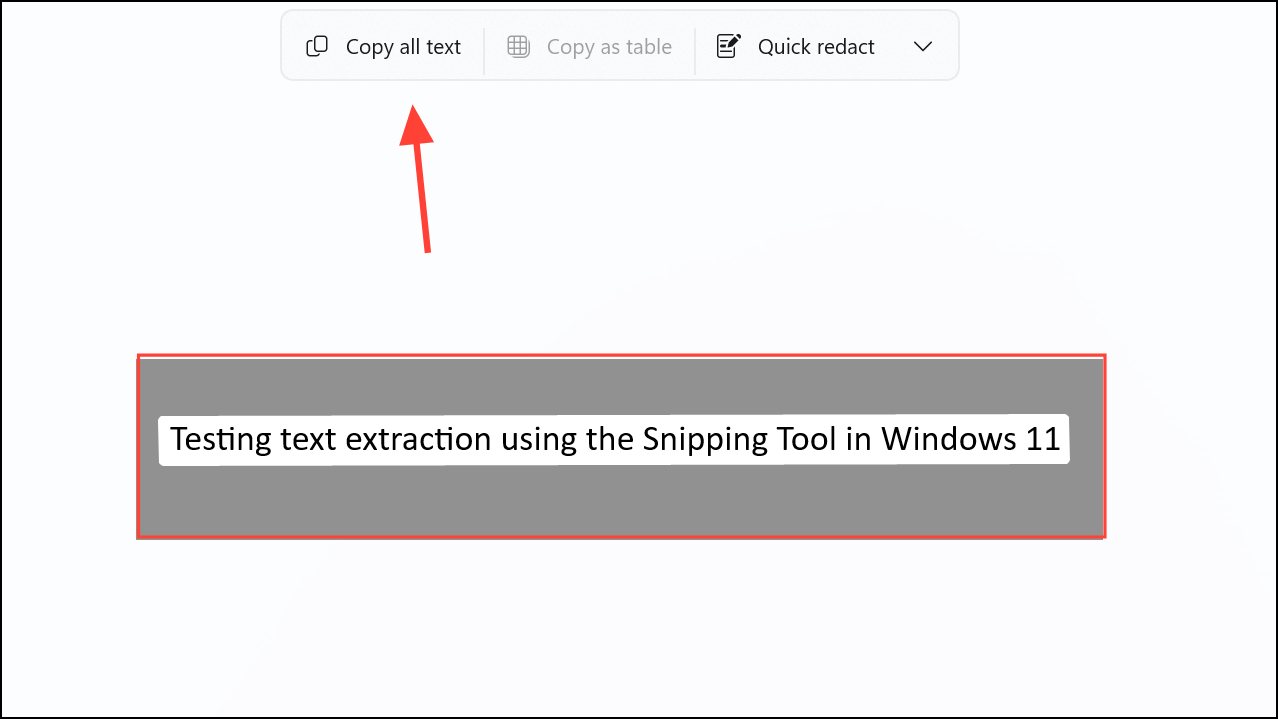
- Windows Snipping Tool (newer versions)
- Certain Mac screenshot plugins
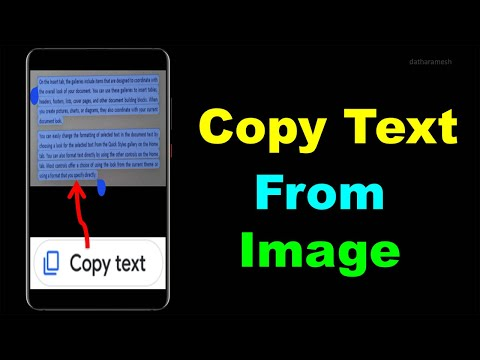
- Mobile screenshot assistants using built-in text capture
These allow you to highlight or copy text directly from the captured image.
Snipping Tools Without OCR
Many devices still use simple screenshot tools that cannot read text. In that case, you’ll need a tool designed specifically for OCR.
This is where an online converter like from image to text, becomes extremely useful.
How to Extract Text from a Snipping Tool Screenshot
Whether your snipping tool supports OCR or not, you can still extract text by following these steps.
1. Capture Your Screenshot
Use any snipping tool to select the area containing the text.
2. Upload the Screenshot to an OCR Converter
Go to fromimagetotext.com and upload the screenshot.
Why this works:
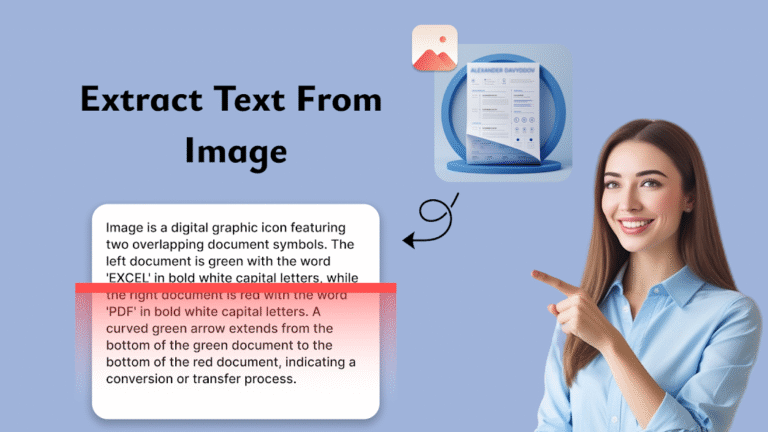
OCR technology identifies characters, symbols, and formatting to convert the image into editable text.
3. Copy the Extracted Text
The tool processes the screenshot and returns clear, editable text you can copy or download.
Why Snipping Tools Alone Aren’t Always Enough
Even if a snipping tool includes OCR, there are limitations.
Common Limitations
- Doesn’t work well on blurry screenshots
- May not recognize handwriting
- Can misread special fonts
- Often struggles with low-contrast text
- Might not support multiple languages
For flawless results, a dedicated OCR converter provides better accuracy.
Best Alternatives to Extract Text from Screenshots
If your snipping tool doesn’t have OCR—or if accuracy matters—try these methods:
1. Use an Online OCR Tool
Tools like image to text converter handle handwriting, camera images, documents, and screenshots.
2. Use OCR Apps on Mobile
Android and iOS now offer OCR in photo galleries or Google Lens-style tools.
3. Use Browser Extensions
Some OCR extensions allow you to screen-capture and extract text instantly.
These alternatives give you more control and higher accuracy than built-in screenshot tools.
When Should You Use a Snipping Tool vs. an OCR Tool?
Use Your Snipping Tool When:
- You only need an image
- You want quick annotations
- You don’t need editable text
Use OCR When:
- You want to copy text
- You want to edit scanned or photographed content
- You’re digitizing notes, receipts, or documents
- You want reliable multi-language support
Tools like from image to text provide more accuracy than standard snipping tools.
Advanced Tip: Combine Snipping + OCR for Faster Workflow
You can speed up productivity by using both tools together.
Example workflow:
- Take a screenshot with your snipping tool
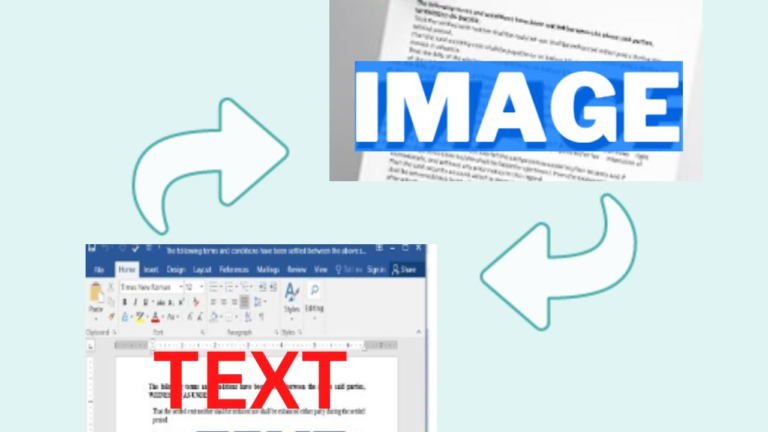
- Upload the image to an OCR converter
- Copy and paste the text wherever you need it
This method is perfect for students, bloggers, researchers, and office users. Try this image to text tool to extract text from any screenshot easily.
FAQs (People Also Ask)
1. Can I extract text directly from a screenshot?
Yes, if your snipping tool supports OCR. If not, upload the screenshot to an OCR tool like fromimagetotext.com.
2. Does Windows Snipping Tool extract text?
Newer versions offer text extraction, but older versions do not. When missing, online OCR tools provide better accuracy.
3. How do I convert a screenshot into editable text?
Capture the screenshot → upload it to an OCR converter → copy the extracted text.
4. Can OCR read handwriting from screenshots?
Yes, advanced OCR tools can read most handwriting styles, although accuracy depends on clarity.
5. Is online text extraction safe?
Reputable OCR platforms delete uploads automatically and do not store your data.
Conclusion
So, can a snipping tool extract text? Yes—but only when it includes OCR. If not, you can still convert screenshots into editable text using tools like the image-to-text converter. This gives you better accuracy, more features, and support for various file types.
If you found this guide helpful, feel free to share it and explore more tools that make your digital work easier.